Skip to content
  • Categories
  • Recent
  • Tags
  • Popular
  • World
  • Users
  • Groups
Skins
  • Light
  • Brite
  • Cerulean
  • Cosmo
  • Flatly
  • Journal
  • Litera
  • Lumen
  • Lux
  • Materia
  • Minty
  • Morph
  • Pulse
  • Sandstone
  • Simplex
  • Sketchy
  • Spacelab
  • United
  • Yeti
  • Zephyr
  • Dark
  • Cyborg
  • Darkly
  • Quartz
  • Slate
  • Solar
  • Superhero
  • Vapor

  • Default (No Skin)
  • No Skin
Collapse
Brand Logo

JOKs Word Documents. JobJar: 119 InCleaning: 1 Cleaned: 3

  1. Home
  2. How Do I ...
  3. Load DVDs/ Movies-Step1

Load DVDs/ Movies-Step1

Scheduled Pinned Locked Moved How Do I ...
1 Posts 1 Posters 10 Views
  • Oldest to Newest
  • Newest to Oldest
  • Most Votes
Reply
  • Reply as topic
Log in to reply
This topic has been deleted. Only users with topic management privileges can see it.
  • S Offline
    S Offline
    sea.captain
    wrote on last edited by sea.captain
    #1

    3 basic steps need to be done to load video. I will explain the parts in general (in case you want to use your own app), or if a specific app.

    the steps are:
    -convert the dvd/video into iso or mp4 container files. the app in this writeup is: dvdfab version 8.
    -compress the container file into a single mp4. the app here is: handbrake.
    -upload compressed file into a category/ topic on the museum system.

    step1.
    most dvds contain 2 directories (video_ts/ audio_ts) and a bunch of *vob files. you need to end up with a single file in the iso format. so if you are a techie, use whatever and do the conversion.

    if you are not a techie, then..

    • find the Museum laptop
    • start the DVDFAB windows program. click StartDVDFab
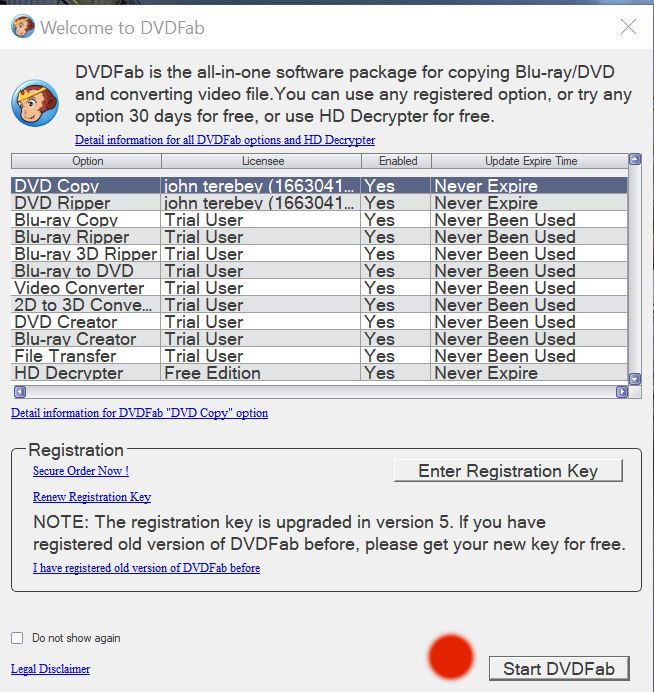
      step1_00_00.JPG
      -load dvd into tray. after a few minutes, it will appear in the source tray.
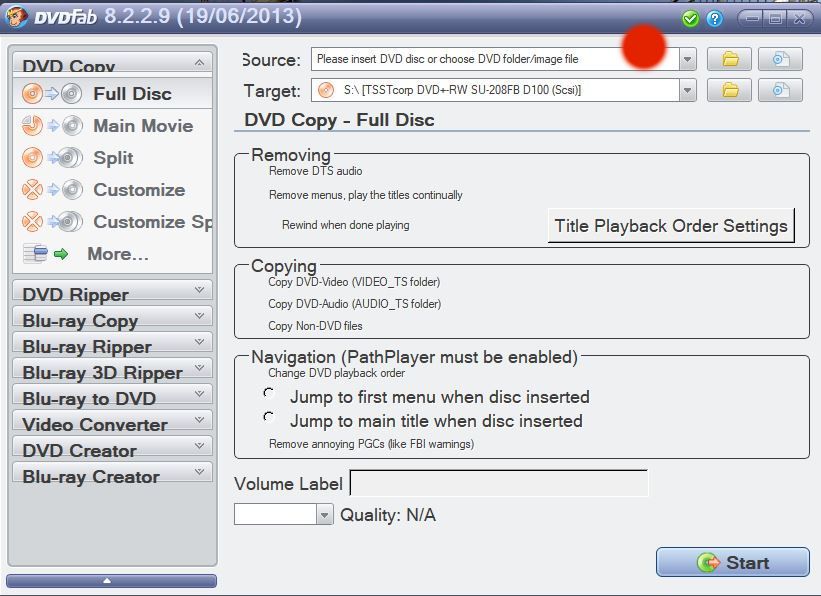
      step1_01_00_src.JPG
      -now enter where the target file should be made. click the file icon. NOT the folder icon.
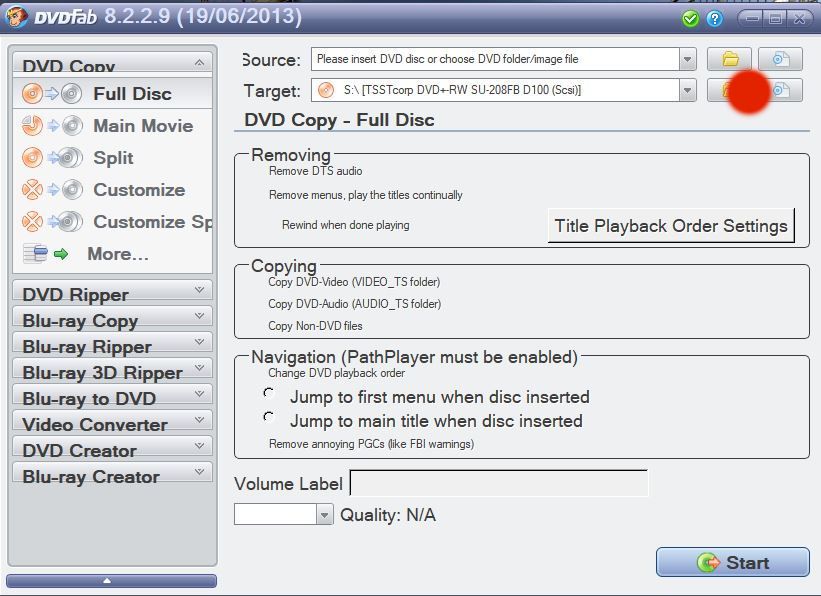
      step1_01_00_tgt.JPG

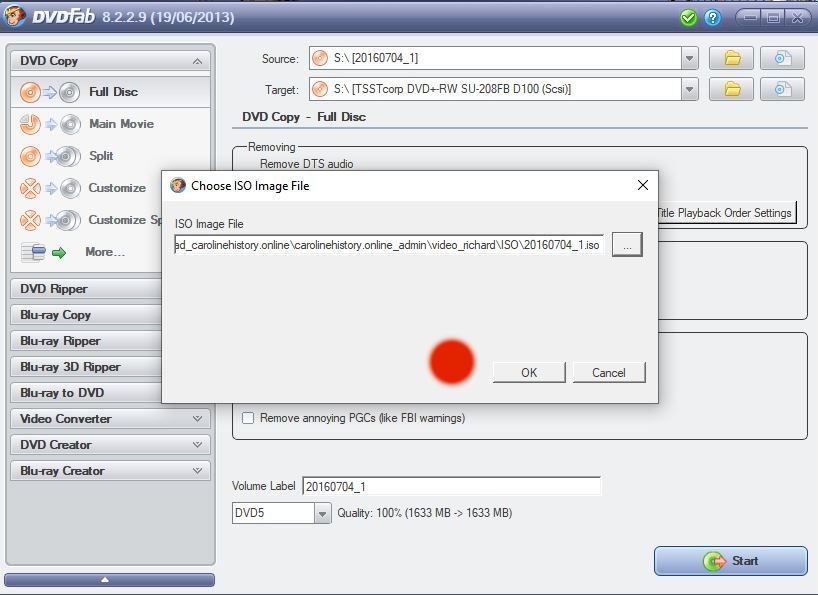
    -put in the target file. click OK
    step1_01_file_ok.JPG

    -the DVDfab app will process your dvd in tray and make the target file. There may be dvd read errors or other info messages. respond appropriately. Here, click OK to accept the target file name, and click Start to get things going.
    --this is an intermediate step. sit back until 100 percent.
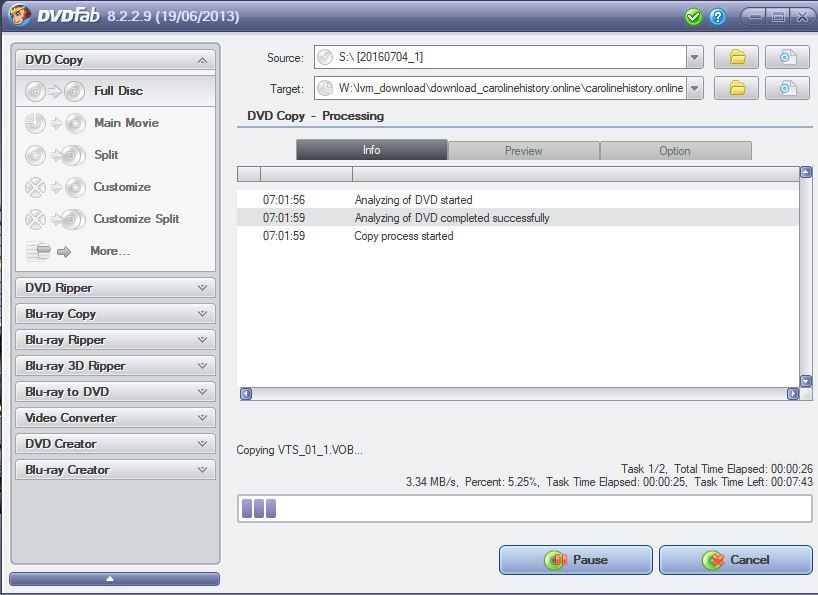
    step1_01_file_doing1_00.JPG
    --almost done. you will get a mostly white screen that simply reaffirms the target file. end this blank screen. then you will get this reassuring screen that all is ok.
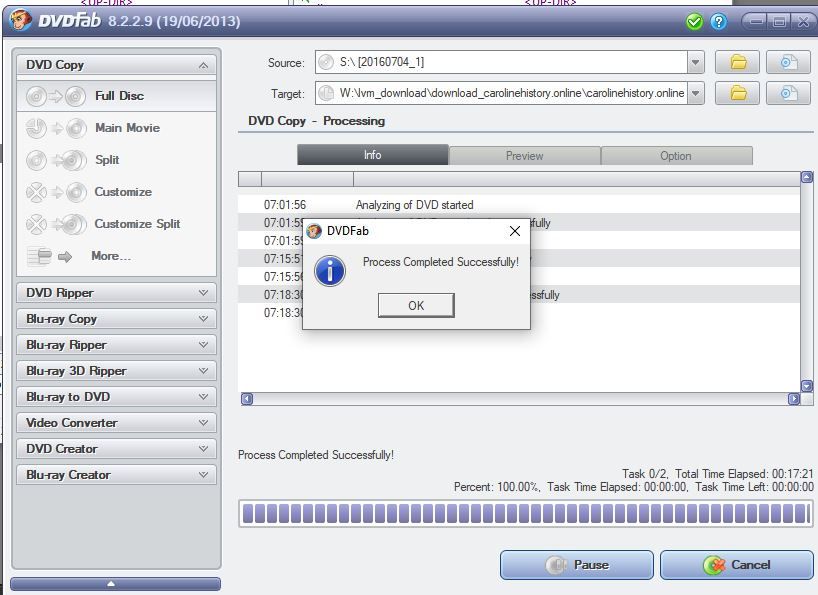
    step1_01_file_doing3_00.JPG

    -once the iso file is made, you can proceed to step2.

    1 Reply Last reply
    0
    Reply
    • Reply as topic
    Log in to reply
    • Oldest to Newest
    • Newest to Oldest
    • Most Votes


    • Login

    • Don't have an account? Register

    • Login or register to search.
    Powered by NodeBB Contributors
    • First post
      Last post
    0
    • Categories
    • Recent
    • Tags
    • Popular
    • World
    • Users
    • Groups